You need to compress a PDF, resize an image, or convert a video. You open your browser, search for a free tool, and the first result asks you to upload your file. You do it without a second thought. The processed file arrives, you download it, and you close the tab.
But what happened to your original file? Where is it now? Who has access to it? How long will it exist on that server?
These are questions that most people never ask, but the answers might change how you handle your files.
What Happens When You Upload a File
When you use an online file tool, the typical workflow involves several steps that happen behind the scenes.
First, your file is transmitted across the internet to a remote server. This transmission is usually encrypted in transit via HTTPS, which protects it from being intercepted during transfer. But once it arrives on the server, the file exists in plaintext on hardware you do not own and cannot inspect.
The server processes your file. During processing, your document exists in memory and often on disk. Depending on the service, temporary copies may be created during the operation.
After processing, the result is made available for download. But your original file and the processed output typically remain on the server for a retention period that varies by service.
How Long Do Services Keep Your Files?
The retention periods are longer than most people expect.
Adobe Acrobat Online retains uploaded files for up to 30 days. That is an entire month where your document sits on Adobe’s servers.
Smallpdf keeps files for up to 14 days. Their privacy policy allows this for “service improvement” purposes.
iLovePDF states a retention period of up to 2 hours, which is shorter but still means your file exists on a server you cannot audit for a window of time.
These retention periods exist because the services need buffer time for processing, error recovery, and in some cases, data analysis. But from a user perspective, it means your tax return, client contract, or medical record is sitting on a server long after you have closed your browser tab.
The Data Collection Layer
File retention is only one piece of the puzzle. Online tools also collect metadata and usage data. This typically includes your IP address, browser fingerprint, the types of files you process, how often you use the service, and sometimes the filenames themselves.
This data is used for analytics, advertising, and service optimization. Some services explicitly state in their privacy policies that aggregated data may be shared with third parties.
When you use an online tool, you are not just sharing a file. You are sharing a behavioral profile: what kinds of documents you work with, how frequently, and from where.
Why This Matters for Professional Use
For personal use, the risk calculus might be acceptable. Converting a vacation photo to a different format is low stakes.
But professional use changes the equation entirely.
Legal and Compliance Risk
If you work in a regulated industry, uploading client data to a third-party service may violate compliance requirements. GDPR, HIPAA, SOC 2, and various data protection regulations have specific requirements about where data is processed and stored. Using an online file tool means your data is processed in a jurisdiction you may not have evaluated, on infrastructure with security practices you cannot verify.
Confidentiality Obligations
Lawyers, consultants, and financial advisors often work under confidentiality agreements. Uploading a client document to a cloud processing tool could technically constitute a disclosure, even if no human at the service reads the file. The file existed on third-party infrastructure, and that alone may be a breach.
Intellectual Property Exposure
Developers uploading proprietary documentation, architects uploading blueprints, or researchers uploading unpublished papers are all exposing intellectual property to unnecessary risk. Even if a service acts in good faith, data breaches happen. Files that never leave your machine cannot be leaked from a server.
The Alternative: Process Everything Locally
The simplest way to eliminate these risks is to stop uploading files. Local processing tools perform the same operations that cloud services do, but entirely on your machine.
When a file tool runs offline, the security model is fundamentally different:
- No transmission risk. Your file never crosses a network. There is no upload, no download, no transit encryption to worry about because there is no transit.
- No server retention. There is no server. Your file exists on your disk before processing and on your disk after processing. That is it.
- No metadata collection. A local tool does not need analytics servers, tracking pixels, or usage telemetry. Your processing activity stays on your machine.
- No third-party access. No employee, contractor, or automated system at a cloud service can access your file, because your file was never sent to them.
What to Look for in a Local File Tool
Not all desktop file tools are created equal. Here is what matters when evaluating alternatives to cloud services.
Truly Offline Processing
Some desktop apps are wrappers around cloud APIs. They look like local software but still send your files to a server for processing. Verify that the tool you choose processes files entirely on your device, even when your internet is disconnected.
Breadth of Tools
One of the reasons people turn to cloud services is convenience. They offer many tools in one place. A local alternative needs to match that breadth to be a practical replacement. Look for tools that cover PDF operations, image processing, video and audio conversion, and file management.
Cross-Platform Support
If you work across macOS and Windows (or Linux), you need a tool that works consistently on all your machines.
Reasonable Pricing
Cloud services charge monthly because that is their business model. Local tools should offer a one-time purchase. If a desktop tool charges a subscription, you are paying the cloud tax without the cloud.
A Practical Privacy Upgrade
Switching from cloud file tools to local ones is one of the simplest privacy upgrades you can make. It does not require changing your workflow. You still drag files, pick an operation, and get results. The only difference is where the processing happens.
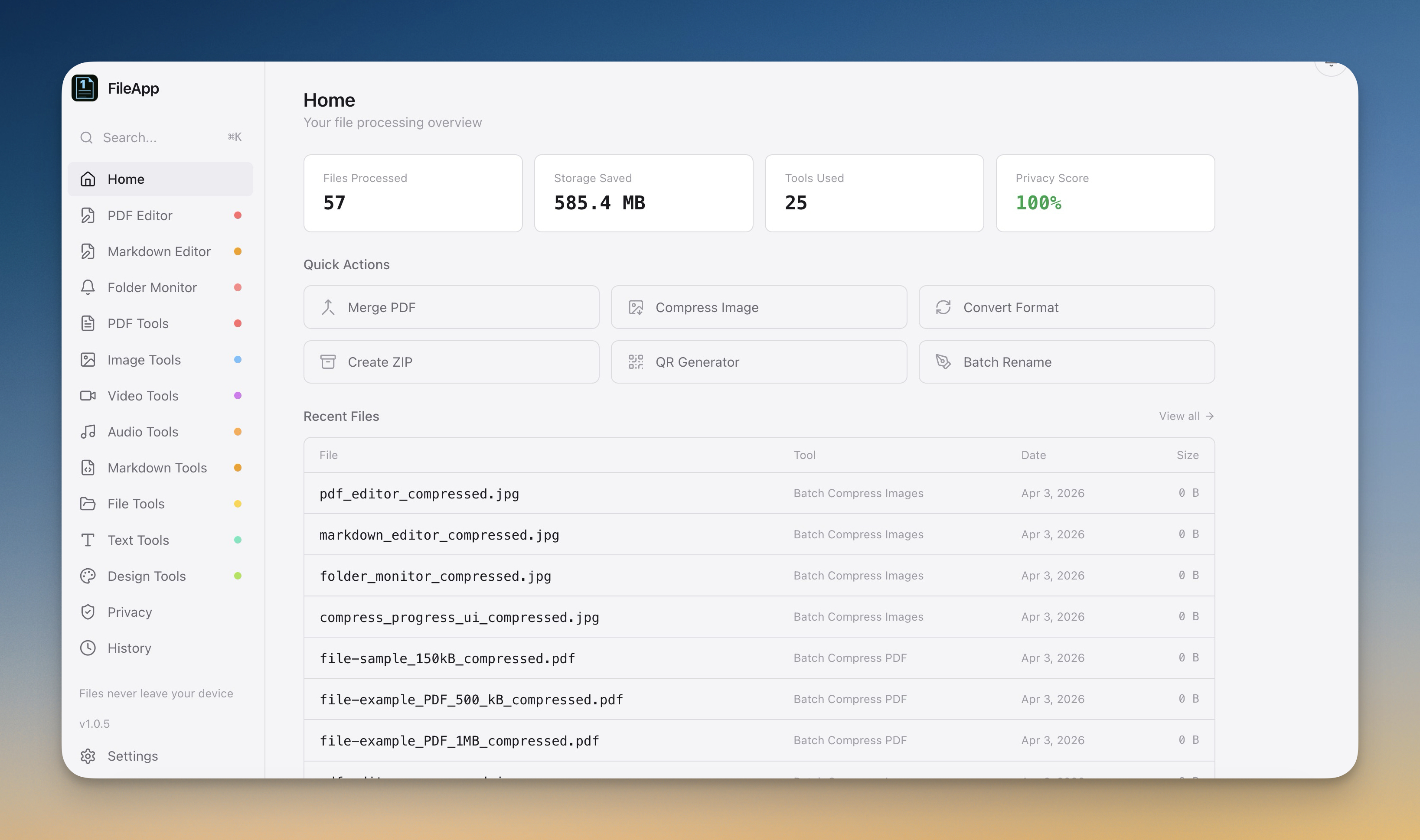
1FileTool was built specifically for this use case. It provides 245+ file tools across PDF, image, video, audio, file management, text processing, design, and privacy categories. Every operation runs 100% on your device. Files never leave your computer. There is no account required, no tracking, and no data collection.
The free version includes all tools with a limit of 8 files per day. Pro licenses start at $29 as a one-time payment with no subscription.
Your files are your business. They should stay on your machine.