If you have been running Docker containers on a VPS, you have probably hit the same frustrating fork in the road that thousands of developers face: pay Vercel or Railway $20-200+ per month for a smooth deployment experience, or install something like Coolify or Dokploy on your server and watch it consume resources that should be running your apps.
There is a third option that most developers overlook, and it changes the economics of self-hosting entirely.
The Problem With Cloud PaaS Platforms
Vercel, Railway, Render, and Heroku all offer polished deployment experiences. Push your code, get a URL, done. But that convenience comes with a cost that compounds fast:
- Bandwidth charges eat into your margins once you pass the free tier (Vercel charges $40/TB after 100GB)
- Per-seat pricing punishes growing teams ($20/member/month on Vercel Pro)
- Build time limits create artificial ceilings on deployment frequency
- Vendor lock-in makes it painful to leave once you have built around their APIs
A team of five on Vercel Pro is already at $100/month minimum before bandwidth and build overages. That same workload runs on a $10-20 VPS with capacity to spare.
The Problem With Self-Hosted Control Panels
So you go the self-hosting route. Coolify, Dokploy, and CapRover all promise the PaaS experience on your own infrastructure. But they share a fundamental design choice that undermines their value: they install a web dashboard on your VPS that runs 24/7.
On a $5 DigitalOcean droplet with 1GB RAM, a Coolify installation consumes a significant chunk of your resources before you deploy a single app. Your VPS is now running someone else’s software around the clock, leaving less headroom for the containers you actually care about.
These tools also introduce a security surface. A web-facing dashboard with authentication, running on your production server, is another thing to keep patched, another port to manage, another attack vector.
The Desktop-First Alternative
What if the management tool ran on your laptop instead of your server? That is the core insight behind Server Compass – a desktop application that manages your VPS over direct SSH connections without installing anything on the server itself.
Here is how deploying a Docker app actually works:
-
Connect your server – Add your VPS by entering its IP and SSH credentials. Server Compass connects directly from your machine over SSH. No agents, no daemons, no dashboards running on your server.
-
Choose your deployment method – Deploy from a GitHub repo, pick from 247+ pre-built Docker templates (PostgreSQL, WordPress, Ghost, Supabase, n8n, and hundreds more), upload a Dockerfile, or pull directly from Docker Hub, GHCR, ECR, or any container registry.
-
Configure and ship – Set environment variables, pick a domain, and deploy. Server Compass handles the Docker Compose configuration, Traefik reverse proxy setup, and Let’s Encrypt SSL certificate provisioning automatically.
-
Zero-downtime by default – Deployments use a blue-green strategy. A new container spins up, health checks pass, then traffic switches over. The old container stays available as an instant rollback target.
The entire deployment pipeline runs from your desktop to your server over SSH. When you close the app, your VPS is just running Docker containers with a Traefik reverse proxy. Nothing else.
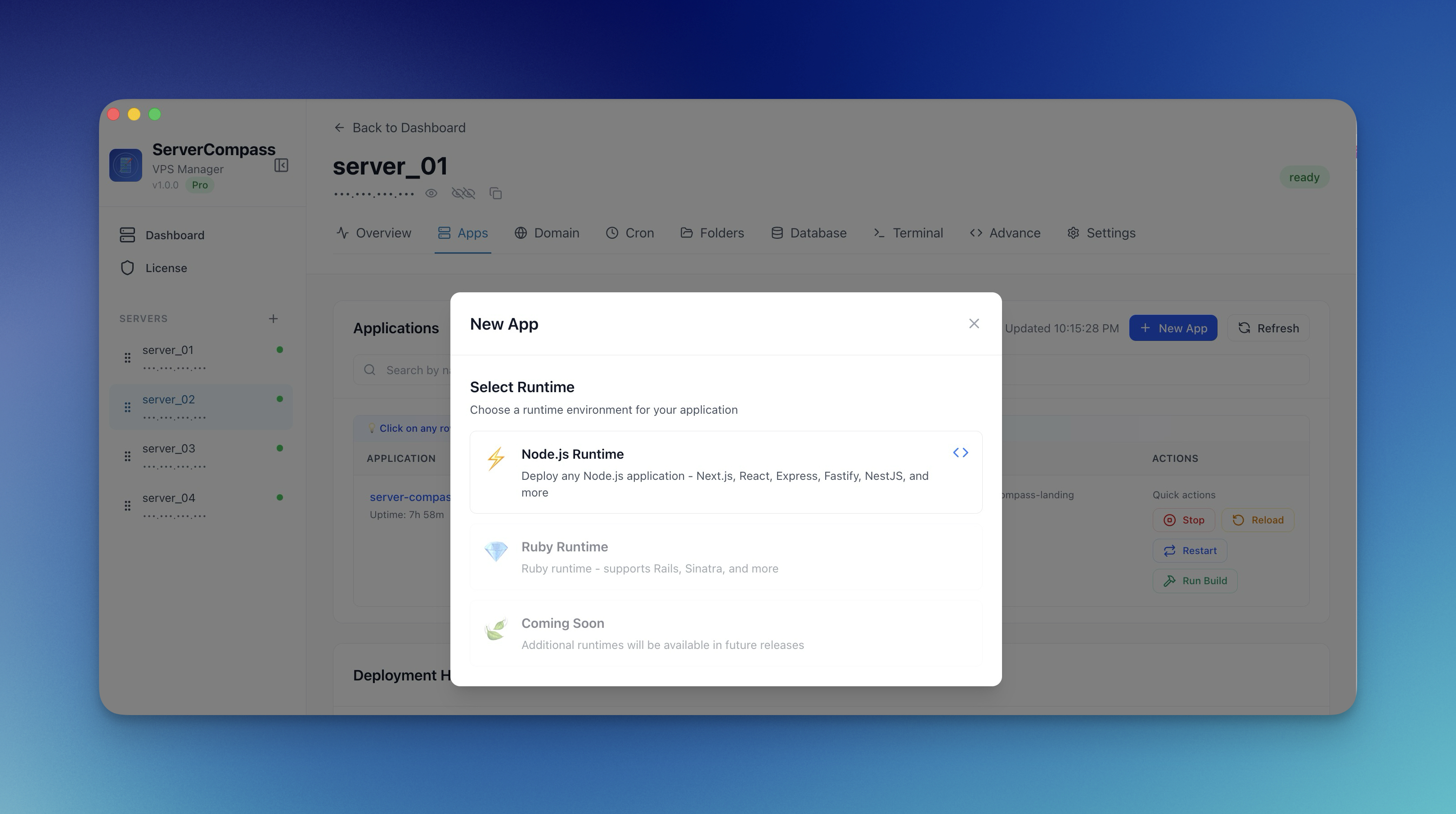
Walking Through a Real Deployment
Let us deploy a Next.js application from GitHub to a $5 Hetzner VPS.
Step 1: Add Your Server
Open Server Compass, click “Add Server,” and enter your VPS IP address. You can authenticate with a password or SSH key. The app verifies connectivity and sets up Docker and Traefik on the server if they are not already present.
Step 2: Deploy From GitHub
Click “New App” and choose “Deploy from GitHub.” Server Compass uses GitHub OAuth so you can select any repo from your account – including private repositories and organizations. Pick your branch, and the app auto-detects your framework and generates an appropriate Dockerfile.
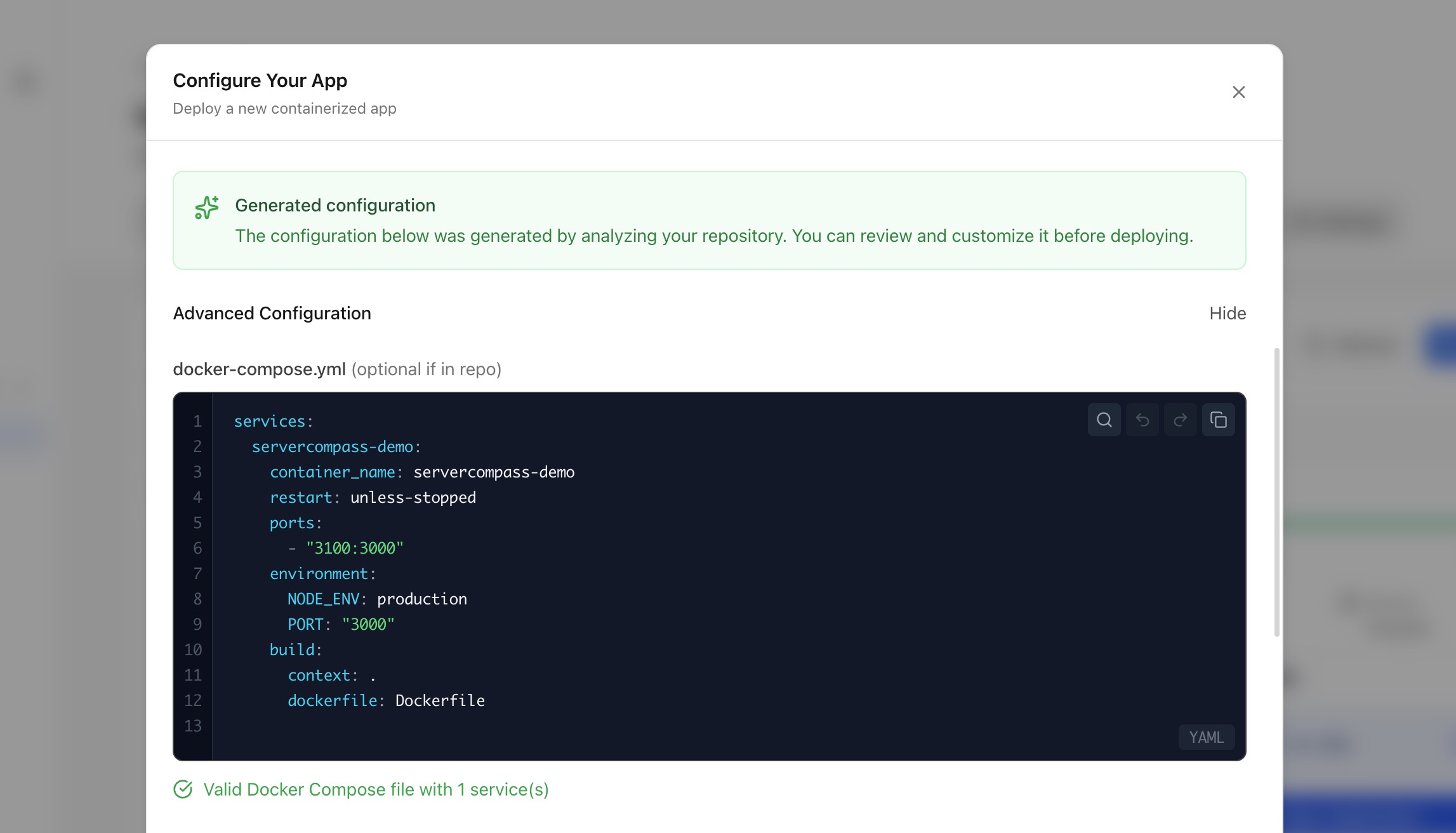
Step 3: Configure the Deployment
Set your environment variables using the built-in editor or import them from an .env file. The .env Vault feature lets you save and reuse environment variables across deployments with AES-256-GCM encryption.
Add a domain, and Server Compass handles DNS verification, Traefik routing rules, and SSL certificate provisioning through Let’s Encrypt. The whole setup takes about two minutes.
Step 4: Ship It
Hit deploy. Server Compass builds the Docker image (on the server or locally, your choice), creates the container, runs health checks, and switches traffic. You get real-time build logs streamed to your desktop.
If something goes wrong, one-click rollback restores the previous deployment instantly.
What About CI/CD?
Server Compass integrates with GitHub Actions for automated deployments. Push to your main branch, and your VPS updates automatically with zero-downtime. You can also set up staging and preview environments that auto-delete on a timer – similar to Vercel’s preview deployments, but running on your own infrastructure.
The Cost Comparison
Here is the math that makes this approach compelling:
| Vercel Pro (team of 3) | Server Compass + VPS | |
|---|---|---|
| Monthly cost | $60+ (before overages) | $5-20 (VPS only) |
| One-time cost | $0 | $29 |
| Bandwidth | $40/TB after 100GB | Unlimited |
| Deployments | 100/day (Hobby) | Unlimited |
| Team seats | $20/member/month | Free (local app) |
After one month, Server Compass pays for itself. After a year, you have saved $500-2000+ depending on your scale.
When to Stick With a PaaS
To be fair, cloud platforms still make sense in specific scenarios: if you need a global edge CDN with zero configuration, serverless functions at the edge, or if you genuinely want zero infrastructure management. If your team does not have anyone comfortable with the concept of a VPS, a managed platform removes that friction entirely.
But if you already have a VPS (or are willing to spin up a $5 droplet), and you want the deployment experience of a modern PaaS without the monthly bill or the server bloat, a desktop-first tool eliminates the tradeoffs that used to make that choice painful.
Getting Started
Server Compass runs on macOS, Windows, and Linux. The free tier lets you connect one server and deploy one app to test the workflow. The full license is a $29 one-time payment with no recurring fees – just you, your desktop, and your VPS.